

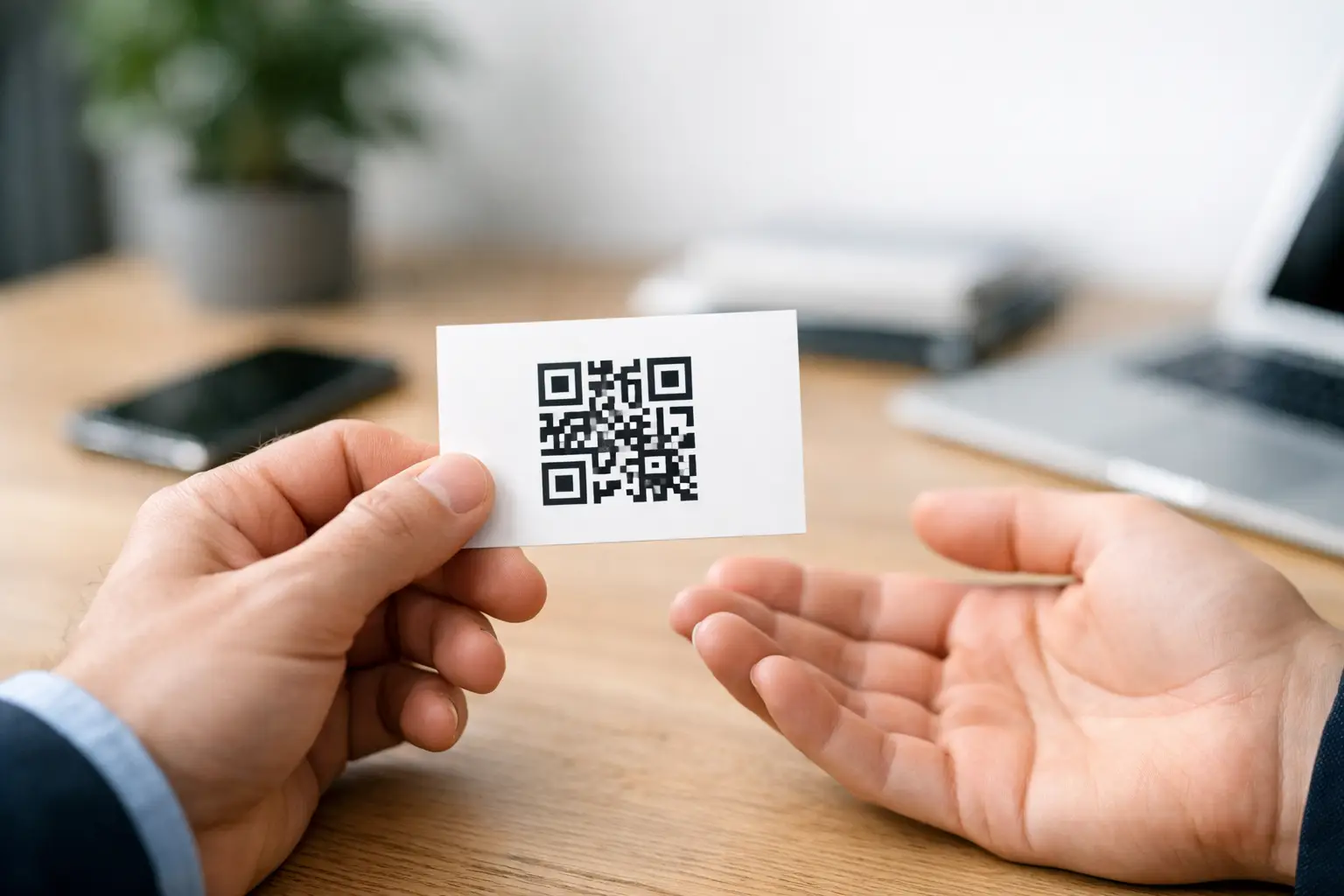
A QR code can turn a standard business card, menu card, product insert, or event badge into a direct response tool. Knowing how to create QR code cards properly matters because a code that is too small, poorly placed, or linked to the wrong page wastes valuable print space. The goal is simple: give customers one clear action they can complete in seconds.
For small businesses, QR code cards are useful when you need to connect printed materials with online ordering, reviews, contact details, promotions, appointment booking, product information, or social profiles. The best result comes from treating the QR code as part of the card layout, not as an afterthought added just before printing.
Start With One Clear Destination
Before generating a QR code, decide exactly where the scan should take the customer. Do not send people to a general homepage unless that is genuinely the fastest route to the action you want. A restaurant customer scanning a table card should reach the menu or online ordering page. A contractor’s business card may send prospects to a quote request form. A retail product card may lead directly to care instructions, product registration, or a limited-time offer.
A QR code works best when the destination matches the printed message beside it. If the card says “Scan to Order,” the scan should open an order page. If it says “Leave a Review,” it should open the review screen or a simple page with clear review instructions. Avoid making customers search after scanning.
For contact cards, a vCard QR code can save a name, phone number, email address, company name, and website directly to a phone. This is practical for sales teams, real estate agents, consultants, and service businesses that hand out cards frequently. For a campaign or promotion, use a dedicated landing page so the offer, tracking, and call to action are all in one place.
Choose Static or Dynamic QR Codes
Static QR codes contain the final information inside the code itself. They are a good choice for permanent details such as a phone number, email address, Wi-Fi login, or a website page that will not change. They are simple, but once printed, the destination cannot be edited.
Dynamic QR codes point to a redirect that can be changed later. They are often a better option for promotional cards, seasonal menus, event materials, loyalty programs, and campaigns where the final destination may need updating. A dynamic code can also provide scan data, depending on the service used.
The trade-off is cost and control. Dynamic services may require an active account or subscription. If that service expires, the printed QR code may stop working. For long-term business cards and permanent signage, confirm that the code will remain active for the life of the printed piece.
How to Create QR Code Cards With the Right Layout
A QR code card needs enough room for the code, a short instruction, and your business identity. On a standard 3.5 x 2-inch business card, the code should not compete with essential details such as the business name, phone number, email, and logo. In many cases, placing the code on the back of the card gives it proper space and keeps the front clean.
Use a clear call to action close to the code. “Scan for Our Menu,” “Scan to Book,” “Scan for Wholesale Pricing,” or “Scan to Save Contact” tells the customer why scanning is worthwhile. A code without context can be ignored, especially on a busy card or promotional handout.
Leave a visible blank border around the QR code. This border is called the quiet zone, and it helps phone cameras recognize the code quickly. Do not place text, borders, illustrations, or background patterns directly against the code. Keep the code away from trim lines as well. If a card is cut slightly off-center, a code placed too close to the edge may lose part of its scan area.
For most printed cards, use a QR code at least 0.8 inch wide. A larger code is safer when the card may be scanned from a distance, used in low light, or printed on textured stock. Menu cards, counter cards, flyers, and posters should use larger codes because customers are not holding them as close as a business card.
Use High Contrast and Print-Safe Colors
Black code on a white background remains the most reliable option. It scans well, reproduces consistently, and works across paper stocks and print quantities. Dark navy, dark green, or deep burgundy can also work when printed against a clean, light background.
Avoid light colors, gradients, metallic effects, and low-contrast combinations. A pale gray code on a cream card may look refined on screen but fail in a restaurant, trade show, or outdoor setting. Reversed QR codes, with a light code on a dark background, can scan, but they need more careful testing and are less forgiving after printing.
If your brand uses a dark card stock, consider a white panel behind the code rather than forcing a reversed design. This gives the code contrast while allowing the rest of the card to carry your brand colors. The same approach works well on kraft paper, colored paper, textured stocks, and image-heavy promotional designs.
Select a Finish That Supports Scanning
Paper stock and finishing affect how the card feels, but they can also affect scan reliability. A standard matte card stock is a dependable option for QR business cards, appointment cards, loyalty cards, and product inserts. It keeps reflections low and allows customers to scan under regular indoor lighting.
Gloss lamination can make colors look brighter, but strong overhead lights may create glare. Gloss is still usable, especially with a large black-and-white QR code, but test a printed sample under different lighting conditions. Velvet lamination gives a premium soft-touch feel and usually reduces glare compared with high gloss, making it a good fit for premium business cards and branded membership cards.
Spot UV can add visual impact to a logo or headline, but avoid applying it over the QR code. The raised glossy coating can reflect light and create inconsistent scan results. Embossing, foil, and heavy texture should also stay away from the code itself. Keep specialty finishing on the surrounding design, not on the functional scan area.
PVC cards are a strong option for reusable loyalty cards, staff ID cards, gym memberships, and customer access cards. Their durability is useful for high-frequency handling, but the QR code still needs sufficient contrast and a clean surface.
Prepare the Print File Correctly
Build the card artwork at final size with bleed, safe margins, and high-resolution graphics. Your QR code should be exported as a vector file whenever possible. Vector artwork remains sharp at any size and avoids the blurry edges that can happen with low-resolution screenshots or compressed images.
If you need a raster QR code, use a high-resolution PNG or TIFF file and keep it at the size it will print. Do not stretch a small web image inside your design file. Distorted squares, soft edges, and missing data modules can prevent scanning.
Use CMYK color settings for commercial printing. While a black QR code may look simple, rich black or incorrect color builds can create registration issues on some jobs. A solid single-color black is generally the safest choice for the code. Your card design can still use full-color branding around it.
Before approving production, check these four items:
- The QR code opens the intended destination on both iPhone and Android devices.
- The code has a clear quiet zone and sits inside the card’s safe area.
- Text beside the code explains the benefit of scanning.
- The card finish, background, and lighting do not create glare or weak contrast.
Test Before Ordering the Full Quantity
Testing is not optional when QR codes are part of a printed campaign. Print the artwork at actual size on an office printer first. Scan it with multiple phones, from different angles, in bright and low indoor light. Then test again after receiving a production proof or a small sample run if the project uses specialty stock, lamination, foil, or a dark background.
Test the customer experience after the scan, not just whether the phone recognizes the code. Does the page load quickly on mobile? Is the offer still active? Is the booking form easy to complete? Does the contact file save correctly? A working code that leads to a slow, confusing, or outdated page will not produce the response you want.
For larger campaigns, create a separate code for each use case. For example, use one code for business cards, another for event flyers, and another for counter displays. This makes it easier to see which printed product generates actual scans and inquiries.
Match the Card Type to the Job
QR codes are not limited to business cards. They work well on appointment reminder cards, restaurant menu cards, real estate feature sheets, event invitations, packaging inserts, thank-you cards, price tags, product labels, and loyalty cards. The format should match how and where the customer will scan it.
A small business card needs concise contact information and a direct action. A postcard has more room for an offer, product image, and scan instruction. A counter display can use a larger code for quick scanning at checkout. Packaging inserts can encourage repeat orders, product reviews, or registration after delivery.
Seaonce can support QR code card projects across standard business cards, premium finishes, PVC cards, postcards, stickers, and promotional print materials. Select the stock and finishing based on handling, brand position, and how frequently the customer is expected to scan.
A QR code card earns its space only when it makes the next customer action easier. Keep the destination focused, print the code with enough size and contrast, and test the finished piece before placing it in customers’ hands.